
DocsApps
Browser extension
Create a ShareShield link from your browser toolbar, or select text on any page and send it, without opening the app. It signs in with your ShareShield account and follows your organisation’s rules.
- Status
- Coming soon
- Browsers
- Chrome, Edge, Brave; Firefox later
- Sign-in
- OAuth, no API key
- Plans
- Every plan
What it does
Create a link from the toolbar
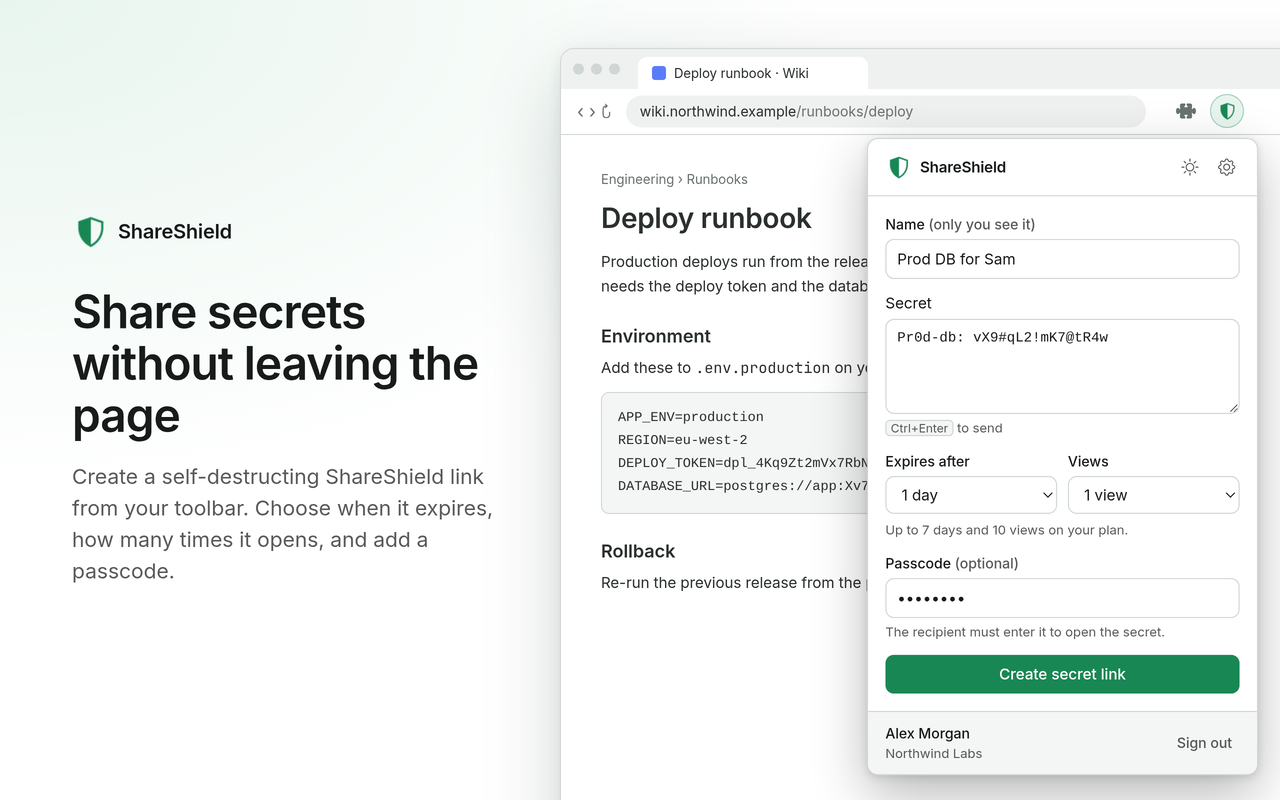
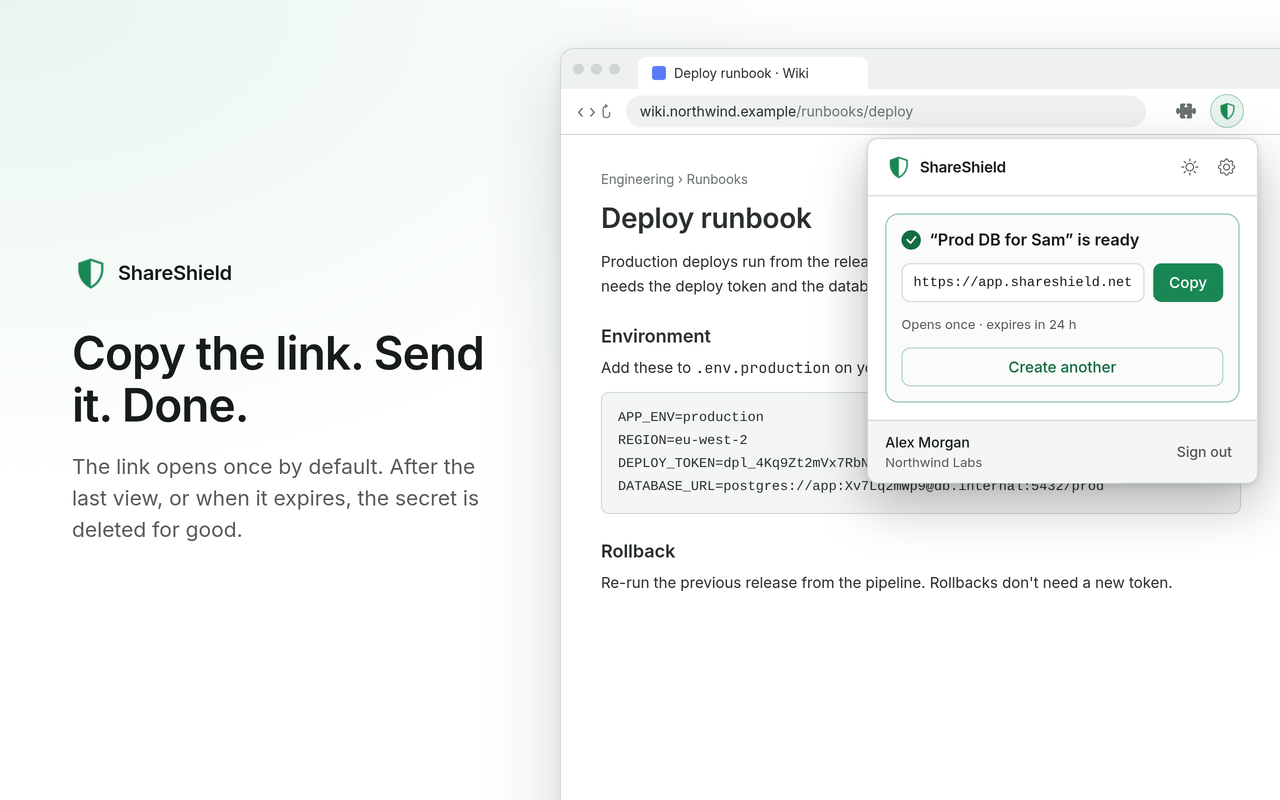
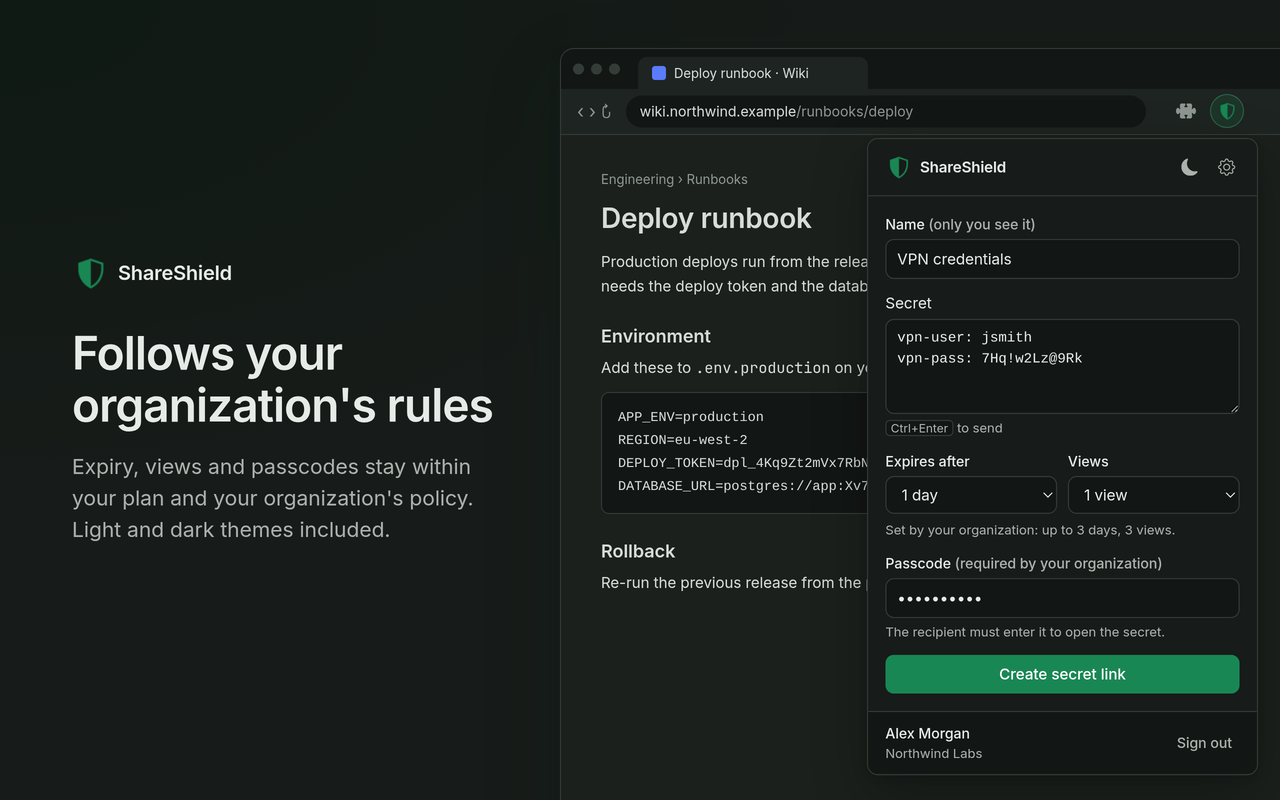
Paste the secret, give it a name only you see, choose when it expires and how many times it can be opened, and add a passcode if you want one. Press Ctrl+Enter (⌘+Enter on a Mac) to create it, then copy the link and send it.
Send what you’ve selected
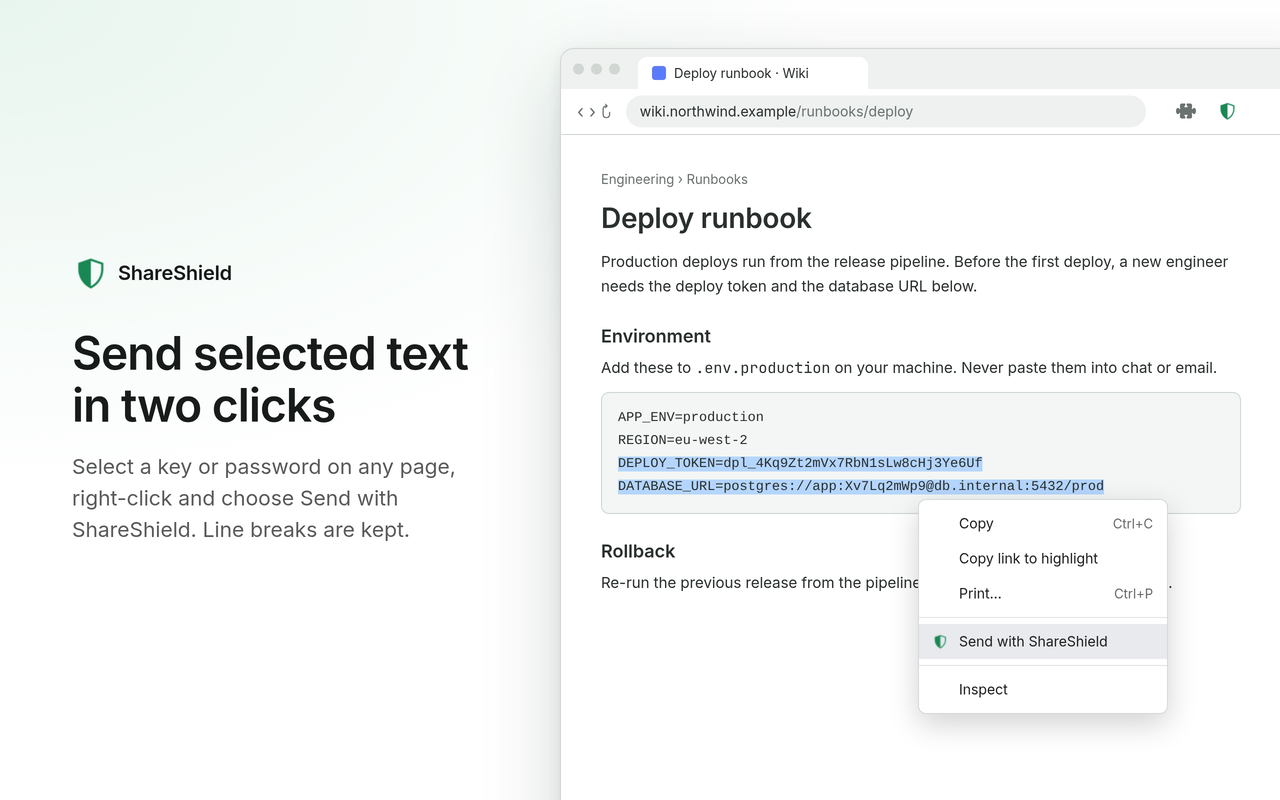
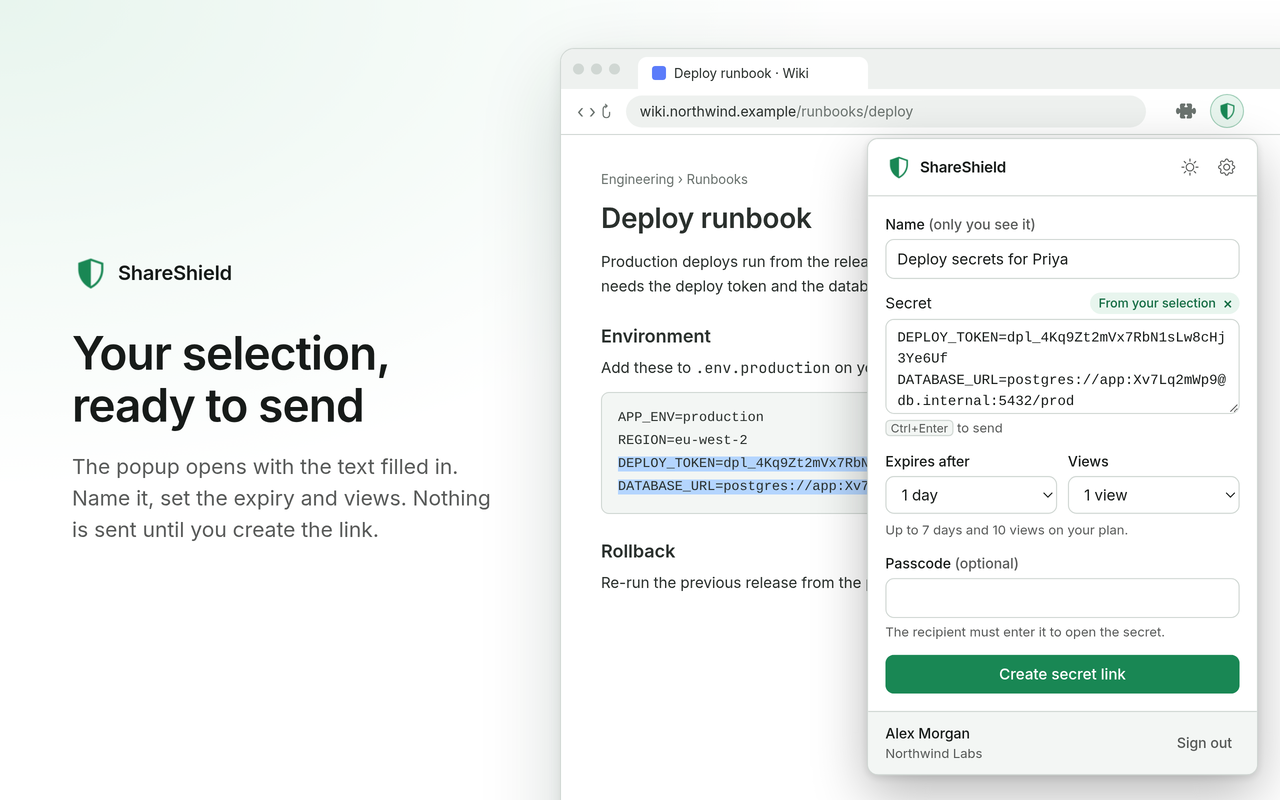
Select text on any page, right-click and choose Send with ShareShield. The extension opens with the text filled in, line breaks kept, so keys and certificates arrive intact. Nothing is sent until you create the link.
Your organisation’s rules apply
Expiry, views and passcodes offer only what your plan and your organisation’s policy allow, as in the web app. Light, dark or automatic theme.
Getting it
The extension is on its way to the Chrome Web Store, for Chrome, Edge, Brave and other Chromium browsers. A Firefox version follows. This page will link to the stores when it’s out. You’ll need a ShareShield account, on any plan.
Signing in
- Click the ShareShield button in your toolbar and choose to sign in.
- A ShareShield sign-in window opens. Sign in as you normally do, with your password and two-factor code or with single sign-on.
- Choose the organisation the extension works in, and approve what it may do. It asks only to create secrets, and it can never do more than your role allows. A viewer can sign in, but can’t create links.
The extension never sees your password and never holds an API key. It gets a sign-in that lasts an hour and renews itself in the background. Signing out of the extension ends that sign-in on ShareShield too.
What it can see
- It reads a page only when you choose Send with ShareShield, and then only the text you selected. Nothing runs on the sites you visit.
- It talks only to
app.shareshield.net. - No analytics or tracking.
- Your sign-in is kept in the extension’s own storage on your device, where web pages can’t read it.
The secrets you create are encrypted and stored exactly as they are when you use the web app. See Security and the privacy policy.
Permissions
Your browser lists these when you install the extension. Each one is there for a single reason:
| Permission | Why |
|---|---|
identity | Opens the ShareShield sign-in window. |
storage | Keeps your sign-in on this device, and text waiting to be sent in memory only. |
contextMenus | Adds “Send with ShareShield” when you right-click selected text. |
activeTab | When you choose “Send with ShareShield”, lets it read that one tab, once. Nothing on any other tab or at any other time. |
scripting | Reads your selection with its line breaks kept, so keys and certificates arrive intact. It returns only the selected text. |
app.shareshield.net | Talks to ShareShield’s sign-in and API. Asked for when you first sign in. |
For admins
There’s nothing to switch on. The extension is built into ShareShield, so any member can connect it to your organisation, on every plan. Links created from it count towards your plan like any other, follow your policy, and appear in the audit log with the person as the actor and the extension as the app.
- Members see the extension under Profile → Authorized apps, and can disconnect it there.
- Owners and admins can see who has connected it, and disconnect anyone, under Dashboard → OAuth apps. Removing someone from the organisation disconnects it too. It’s marked Built-in there: ShareShield manages its settings, so they can’t be changed.
Want to build your own? The extension uses the same OAuth sign-in that’s open to any app.